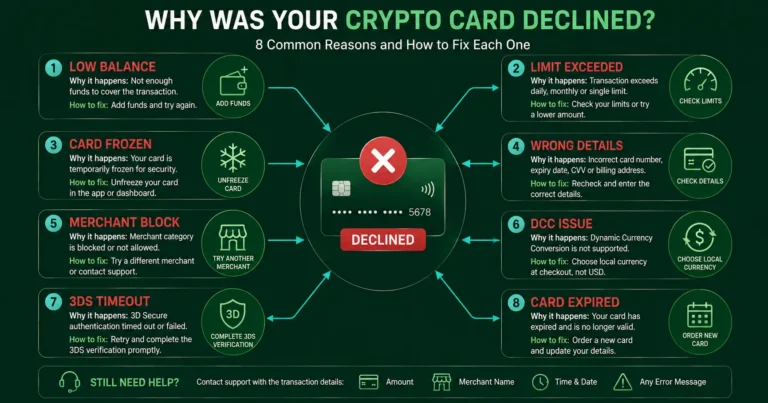
Quick answer: The most common reasons a Rivocard is declined are: (1) insufficient card balance — the card does not have enough funds to cover the purchase, (2) spending limit exceeded — the transaction exceeds your KYC-tier’s per-transaction or daily limit, (3) card frozen — the card was manually frozen, (4) card details entered incorrectly — number, expiry, or CVV mistyped, (5) merchant restriction — some merchant categories (gambling, adult content) are blocked by card network policy, and (6) DCC-related decline — the terminal is attempting Dynamic Currency Conversion. Most declines have a clear cause and a specific fix. This guide walks through each reason and the step-by-step resolution.
Reason 1: Insufficient Card Balance
The most common cause. A crypto prepaid card can only spend what is loaded on it. If the card balance is less than the purchase amount, the transaction declines.
Why it happens:
- Card was not loaded with enough funds
- Previous purchases reduced the balance without noticing
- A subscription service charged more than expected (price increase, renewal)
- Hotel incidental hold or car rental deposit consumed balance earlier
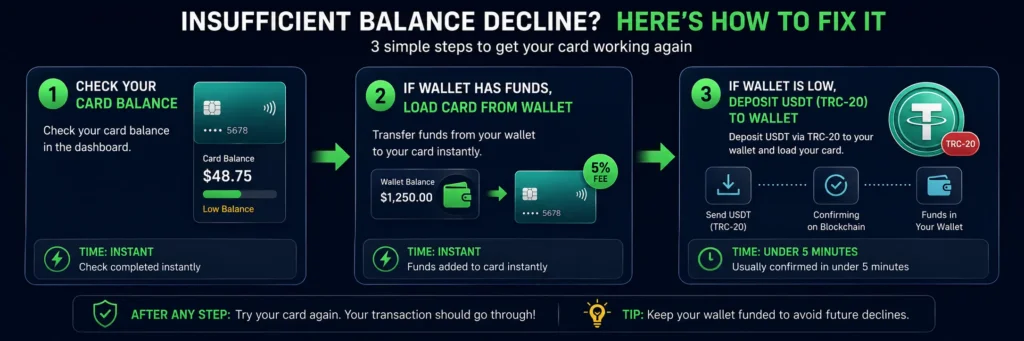
How to check: Log into your Rivocard dashboard. Navigate to the card. The current balance is displayed.
The fix:
- Open your Rivocard dashboard
- Check your wallet balance — if sufficient, fund the card from the wallet (5% fee applies)
- If wallet balance is low, deposit USDT from your exchange (TRC-20, free, seconds to confirm)
- Once wallet is topped up, reload the card
- Retry the purchase
Prevention: Keep a buffer on active cards. If you expect a $200 purchase, ensure the card has $220+ to account for price variations or additional fees.
Reason 2: Spending Limit Exceeded
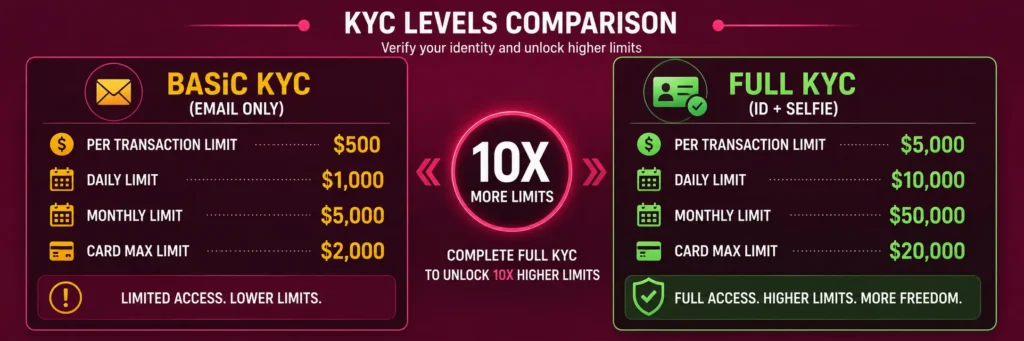
Rivocard applies spending limits by KYC tier that may block individual transactions or cause the card to be declined when daily limits are reached.
Basic KYC limits (email only):
- $500 per transaction
- $1,000 per day
- $5,000 per month
- $2,000 maximum card balance
Full KYC limits (ID + selfie):
- $5,000 per transaction
- $10,000 per day
- $50,000 per month
- $20,000 maximum card balance
How to tell: A $600 hotel room would decline on a Basic KYC card because it exceeds the $500 per-transaction limit — even with $2,000 on the card.
The fix:
- For the immediate transaction: split the payment if the merchant allows (two smaller charges), or use a different payment method
- For ongoing use: upgrade to Full KYC. Government ID + selfie takes approximately 5 minutes. Once approved, transaction limits increase 10x immediately.
To upgrade KYC on Rivocard: Navigate to account settings in your dashboard, find the KYC or identity verification section, and follow the prompts to submit your ID document and selfie.
Reason 3: Card Is Frozen
A frozen card declines all transactions — both purchases and Apple Pay taps.
Why a card might be frozen:
- You froze it intentionally (after losing your phone, for security)
- Rivocard froze it due to a suspected security issue
- The card expired
How to check: In your Rivocard dashboard, the card will show a “Frozen” or locked status indicator.
The fix: Unfreeze the card from your dashboard. Navigate to the card, toggle the freeze control to active. The card is immediately ready for use.
If Rivocard froze the card due to security: Contact Rivocard support to understand the reason and resolve the underlying issue before unfreezing.
Reason 4: Incorrect Card Details Entered
At online checkouts, manually entering incorrect card details causes an immediate decline.
Common entry errors:
- Mistyped card number (one digit wrong)
- Wrong expiry date (expired card number entered, or month/year transposed)
- Wrong CVV (3-digit security code)
- Name not matching what the merchant expects
- Billing address incorrect (some merchants require address verification)
The fix:
- Return to your Rivocard dashboard
- View the card details
- Copy the card number exactly (16 digits, no spaces between groups)
- Confirm the expiry date (MM/YY format)
- Confirm the CVV (3 digits, different from the card number)
- Re-enter at checkout carefully or use the copy function to paste
For billing address: If a merchant requires address verification (AVS), enter the address associated with your Rivocard account. If no specific address was set during Rivocard registration, try the standard address format for your country.
Reason 5: Merchant Category Block
Some merchant categories are blocked by Visa network policy or by Rivocard’s program terms, regardless of card balance or limits.
Commonly blocked categories:
- Gambling and online casinos
- Adult content platforms
- Money service businesses and crypto exchanges (when buying crypto with a card)
- Government-sanctioned merchant categories in restricted jurisdictions
How to tell: The merchant accepts Visa in general, but the specific site or business type declines. Other merchants work fine with the same card.
The fix: This is a program-level block that cannot be overridden by the cardholder. If you need to transact with a blocked merchant category, that transaction cannot be completed with a Rivocard. Use an alternative payment method for that specific merchant.
Reason 6: DCC or Currency Issue at Terminal
At in-person terminals, Dynamic Currency Conversion (DCC) sometimes causes unexpected declines or confusing payment flows.
The scenario: A terminal in Japan shows the purchase in USD (your home currency) rather than JPY (local currency). If you decline DCC and choose local currency, the transaction typically proceeds normally. If the terminal is configured in a way that creates a conflicting authorization, it may decline.
Related issue: Some terminals require the card to be physically inserted (chip-and-PIN) and do not accept NFC contactless for the first transaction, or for transactions above a local limit. A Rivocard virtual card via Apple Pay may be declined at a chip-only terminal.
The fix:
- Choose local currency at all terminals when given a DCC option
- If a terminal requires physical card insertion: use an alternative payment method for that specific transaction
- Try the payment again at a different terminal if available
Reason 7: 3D Secure Verification Not Completed
For online purchases, some merchants require 3D Secure (3DS) authentication — an additional verification step where you confirm the transaction through your card issuer’s system.
How it works on Rivocard: When 3DS is triggered, a popup or redirect appears asking you to verify the transaction. This is typically a one-time code sent by email or an authentication through your Rivocard account.
If the verification is not completed (the popup is closed, the code is not entered, or the verification times out), the transaction declines.
The fix:
- When a 3DS verification prompt appears, complete it before the timeout
- Check your email for a verification code if prompted
- If the 3DS window closed accidentally, restart the checkout process from the beginning
Reason 8: Card Expired
Virtual cards have an expiry date (typically 2-3 years from creation). Once expired, the card declines all transactions.
How to check: Your Rivocard dashboard shows the expiry date on each card. If the current month and year are past the expiry date, the card is expired.
The fix:
- Note any remaining balance on the expired card (balance may still be accessible via the dashboard)
- Contact Rivocard support if balance needs to be transferred
- Create a new virtual card
- Fund the new card from your wallet
- Update any saved payment methods at merchants with the new card details
Quick Diagnosis Checklist
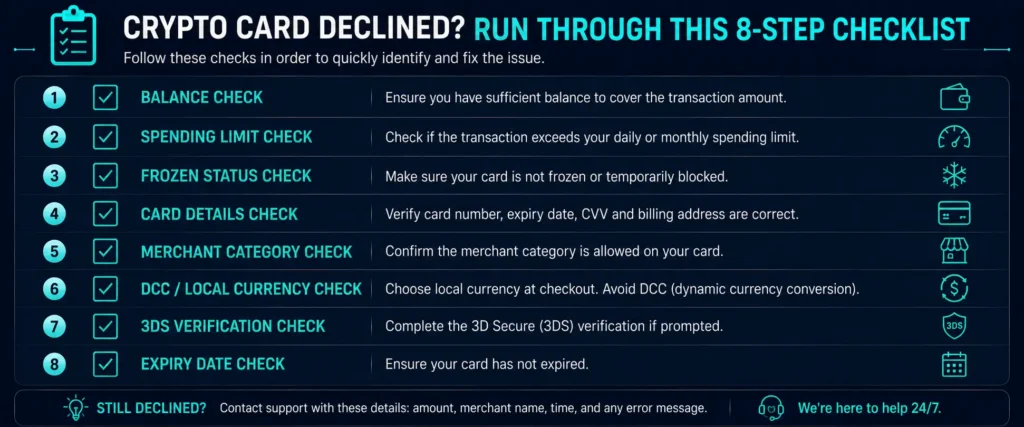
When a Rivocard transaction declines, check in this order:
- Balance: Is there enough on the card for this purchase amount?
- Limit: Is this purchase within your KYC-tier limits ($500/transaction on Basic)?
- Frozen: Is the card frozen in your dashboard?
- Details: Were the card number, expiry, and CVV entered correctly?
- Merchant: Is this a blocked merchant category (gambling, adult content)?
- Currency: Did you choose local currency at the terminal (not DCC)?
- 3DS: Was there a verification prompt that timed out?
- Expiry: Is the card still within its expiry date?
If none of these resolve the issue: contact Rivocard support with the transaction amount, merchant name, and the error message or decline code if displayed.
FAQs
Why was my Rivocard declined even though I have balance?
If you have balance but the card was declined, check: (1) the transaction amount may exceed your per-transaction limit ($500 on Basic KYC), (2) the card may be frozen, (3) the merchant category may be blocked, or (4) the card details entered may have been incorrect. Check your dashboard for card status and spending limits.
What is the per-transaction limit on Rivocard?
Basic KYC (email only): $500 per transaction. Full KYC (ID + selfie): $5,000 per transaction. If a single purchase exceeds this, it will be declined. Upgrade to Full KYC to increase the limit to $5,000 per transaction.
How do I fix an insufficient balance decline on Rivocard?
Check your card balance in the dashboard. If low: fund the card from your wallet (5% fee). If your wallet is also low: deposit USDT or other supported crypto to your wallet first (TRC-20 recommended, free, seconds to confirm), then fund the card.
Can a Rivocard be declined at a specific merchant but work elsewhere?
Yes. Some merchant categories are blocked by Visa network policy or Rivocard’s program terms (gambling, adult platforms, some money service businesses). If a specific merchant type declines but others work, this is likely a category restriction that cannot be overridden.
Why did my Rivocard decline at an international terminal?
Most common causes at international terminals: (1) choosing DCC (home currency) instead of local currency – retry choosing local currency, (2) chip-PIN-only terminal without NFC (cannot use virtual card) – Apple Pay requires NFC, (3) insufficient balance after a hotel hold consumed card balance.
What is 3D Secure and why did it cause a decline?
3D Secure is an authentication step for online purchases where you verify the transaction through an email code or account authentication. If the verification popup is closed or times out before completion, the transaction declines. Restart the checkout and complete the 3DS verification when prompted.
How do I know if my Rivocard is frozen?
Log into your Rivocard dashboard and navigate to the card. A frozen card shows a frozen or locked status indicator. Toggle the freeze control to unfreeze it if you froze it yourself. Contact support if Rivocard froze it due to a security concern.
What should I do if my Rivocard keeps declining and I cannot identify the reason?
Go through the quick diagnosis checklist: balance, limit, frozen status, card details, merchant category, DCC, 3DS, and expiry. If none resolve it, contact Rivocard support with the transaction details, merchant name, and any error message or decline code shown.
Does a decline charge my card balance?
No. A declined transaction does not charge your balance. No funds are deducted. The attempt is recorded in your transaction history but carries no cost.
Why was my new Rivocard declined on first use?
A new card’s first use – especially at certain online merchants – may trigger a 3D Secure verification. Check for a verification email or popup during the checkout. Some card programs also have a first-use verification step. If the issue persists after completing any verification, contact Rivocard support.
Get Started
Most declines have a simple fix – check your balance, limits, and card status in your dashboard. Log into your Rivocard dashboard