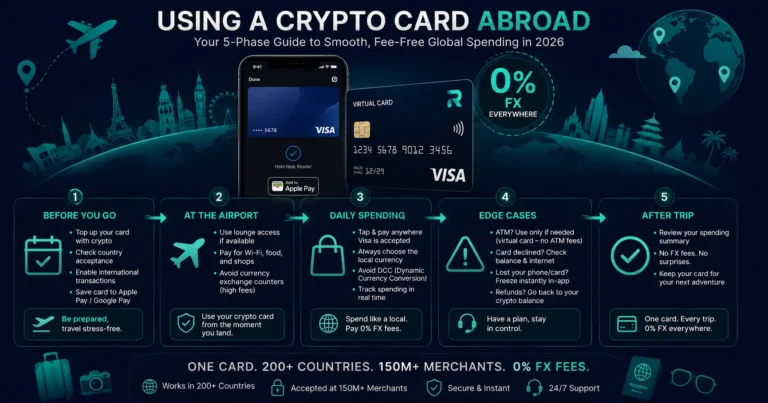
Quick answer: Using a Rivocard virtual Visa card abroad involves three phases: preparation before travel (loading funds, adding to Apple Pay, checking spending limits), in-destination spending (Apple Pay for in-person purchases at any NFC terminal, online bookings, 0% FX on everything), and handling edge cases (hotel holds, rental car deposits, ATM access, and what to do if a payment declines). The core rule for every international payment: always decline Dynamic Currency Conversion (DCC) and pay in local currency — this is the single most important action to maximize your card’s value abroad. Rivocard charges 0% FX on all international transactions; DCC bypasses this and can cost 3-8% through the merchant’s processor instead.
Phase 1: Before You Leave Home
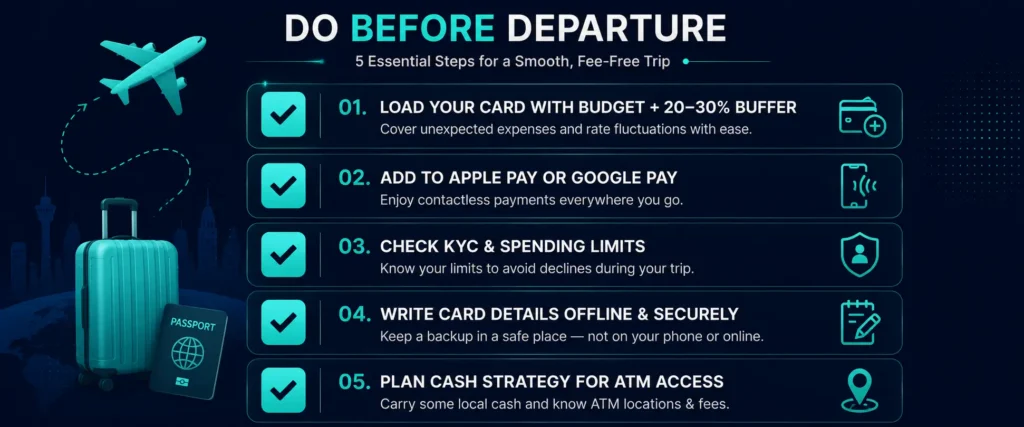
Load Your Card With Enough for the Trip (Plus Buffer)
Calculate your estimated travel budget across all categories:
- Accommodation (if not pre-booked)
- Food and restaurants
- Transport (local transit, taxis, ridesharing)
- Activities and entertainment
- Shopping
- Emergency buffer (20-30%)
Fund the card from your Rivocard dashboard. The 5% card funding fee applies when you move wallet balance to a card. Fund enough for the whole trip upfront — multiple small reloads while traveling add friction.
Example for a 10-day trip with $2,000 budget: Fund $2,105 from your wallet: 5% fee = $105, card has $2,000.
Keep $100-200 extra buffer: Hotel holds, unexpected expenses, and spending variations all benefit from a buffer on the card. A card that hits zero declines at checkout — embarrassing and inconvenient when traveling.
Add Your Rivocard to Apple Pay or Google Pay Before Departure
This is the single most important pre-trip setup step for in-person spending. With your card in Apple Pay or Google Pay:
- Tap your phone at any NFC terminal instead of handling card details
- Your actual card number is never transmitted (device token instead)
- Works at transit systems (London Underground, Singapore MRT, Tokyo convenience stores)
- Biometric authentication (Face ID) prevents unauthorized use if phone is lost
Setup: Open Wallet app (iPhone) or Google Wallet (Android), tap +, add card, enter Rivocard details, verify via email. Takes 3-5 minutes and should be done before you leave home, not at the airport.
Check Your KYC-Tier Spending Limits
For Basic KYC (email only): $500 per transaction, $1,000 per day, $5,000 per month.
If any planned single expense might exceed these — a hotel stay, a flight booked at destination, a car rental — upgrade to Full KYC before travel. Full KYC takes 5 minutes and raises limits to $5,000 per transaction, $10,000 per day.
Have Card Details Accessible Offline
Write down (or photograph and store offline) your:
- Card number
- Expiry date
- CVV
If your phone is stolen or runs out of battery, you may need to manually enter card details at a terminal or for a booking. Having these written down (in a secure location separate from your phone) ensures you are not stranded without payment access.
Plan Your Cash Strategy
Rivocard virtual cards cannot access ATMs. Plan accordingly:
- If traveling to a cash-dependent destination, withdraw local currency from an ATM at the airport or destination using a physical bank card before relying solely on Rivocard
- Most developed-market tourist destinations accept Visa contactless for the majority of spending; cash needs are typically modest
- Keep a physical bank card accessible specifically for cash emergencies
Phase 2: At the Airport and In Transit
Airport Bookings and Lounges
Most airport services accept Visa cards:
- Duty-free shops: Visa accepted
- Airport restaurants and cafes: Visa accepted, often contactless
- Lounges: most independent pay-to-enter lounges accept Visa
Rivocard works at all of these via Apple Pay or Google Pay (if NFC terminals) or card number entry.
Currency Exchange: Skip the Bureau
Airport currency exchange desks and bureaux de change apply some of the worst exchange rates available — often 5-10% worse than the Visa interbank rate. Avoid them.
Your Rivocard at 0% FX gives you the Visa network’s interbank rate on every transaction in local currency. Simply use your card (via Apple Pay) instead of exchanging cash wherever card payment is accepted.
Exception: If you need cash for local markets or cash-only vendors, use a physical bank card at an ATM for a better rate than any exchange desk.
Transit at Your Destination
Most major city transit systems now accept contactless Visa or Apple Pay:
- London: TfL accepts Apple Pay at all Underground, Overground, Elizabeth line, DLR, and bus fare gates
- Singapore MRT: Accepts contactless Visa at fare gates (SimplyGo system)
- New York MTA: OMNY contactless on most subway lines and buses
- Sydney: Opal network accepts contactless Visa
- Tokyo: IC card (Suica) added to Apple Pay works on JR and Tokyo Metro
Where transit accepts Apple Pay or contactless Visa, tap your phone and your Rivocard balance is charged at 0% FX in local currency.
Phase 3: Daily In-Destination Spending
The Core Rule: Always Pay in Local Currency
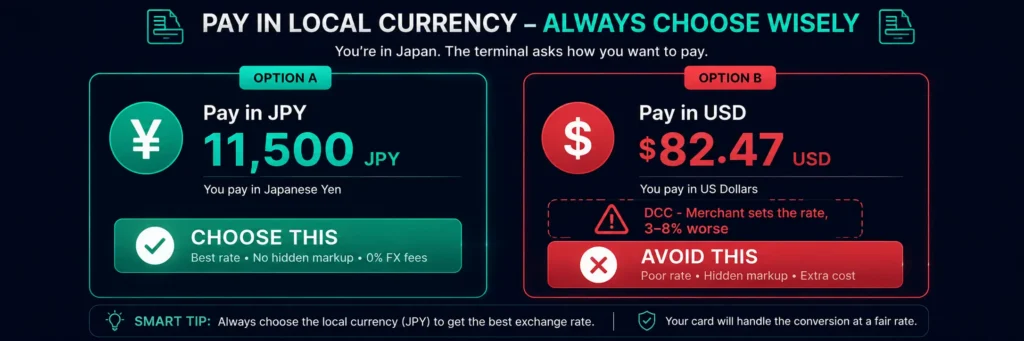
Every time a merchant terminal or ATM offers to charge you in your home currency (USD, GBP, EUR, etc.) rather than the local currency — decline. This is Dynamic Currency Conversion (DCC).
What DCC looks like:
- A card terminal in Japan shows “11,500 JPY or $82.47 USD” and asks which to charge
- An ATM in Thailand offers “1,000 THB or $29.12 USD”
- A restaurant bill shows “EUR 45.00 or GBP 38.50” when you are a UK cardholder
The answer is always: Local currency. 11,500 JPY. 1,000 THB. EUR 45.00.
Accepting DCC bypasses the Visa network’s interbank rate and lets the merchant’s processor apply their own rate — often 3-8% worse. Your Rivocard’s 0% FX fee becomes irrelevant because you have already paid a worse exchange rate.
How to decline DCC:
- At terminals: select the local currency option, not the “pay in [home currency]” option
- If the terminal defaults to DCC without asking: look for “change currency” or “back” options before confirming
- At ATMs: select “without conversion” when offered
In-Person Payments via Apple Pay
At any merchant with an NFC contactless reader (the wireless symbol or “Pay” sign):
- Double-click your iPhone’s side button (Face ID) or home button (Touch ID)
- Your Rivocard appears as the default card (or select your travel card if different)
- Authenticate with Face ID or Touch ID
- Hold the top of your iPhone near the reader
- Confirmation haptic and checkmark — done
The transaction processes at 0% FX in local currency, and your card balance reduces by the equivalent dollar amount.
Works at: Grocery stores, pharmacies, restaurants, cafes, convenience stores, retail shops, transit systems, petrol stations with contactless.
Does not work at: Chip-and-PIN-only terminals without NFC (rare but exists in some countries), ATMs, merchants that require physical card insertion.
Online Purchases While Traveling
Many travel purchases happen online even while at your destination — restaurant bookings, tour reservations, museum tickets, transport.
Enter your Rivocard details at checkout as normal. The 0% FX applies equally to online purchases from any country. There is no difference in fee between tapping at a local restaurant via Apple Pay and booking a tour online from the same destination.
At Restaurants and Cafes
Most modern restaurants in tourist areas and cities accept contactless payment. Present your phone for Apple Pay when paying.
Tipping considerations: In countries where tipping is customary (US, Canada, some others), terminals may add a tip step. Enter your tip amount and the total is charged to your card at 0% FX.
Bill splitting: If splitting a bill, individual card payments work the same way at any terminal that accepts multiple separate payments.
Hotels and Accommodation
Online bookings (Booking.com, Hotels.com, Airbnb, direct): Rivocard works at all of these — covered by online purchase capability.
At check-in: Most hotels place an incidental hold on the payment card at check-in. For most mid-range properties, a Rivocard virtual Visa card handles this if sufficient balance exists.
Physical card requirement: Some luxury or business hotels specifically request a credit card (not prepaid) for holds. If this occurs, use a traditional credit card for the hold while paying the room itself with Rivocard (if the hotel allows split payment) or just use your traditional card for the full stay at that property.
Day Tours and Activities
Booking platforms like Viator, GetYourGuide, and Klook accept Visa cards online. Local activity operators at the destination may use card terminals — contactless Visa works at any modern terminal.
Phase 4: Handling Edge Cases
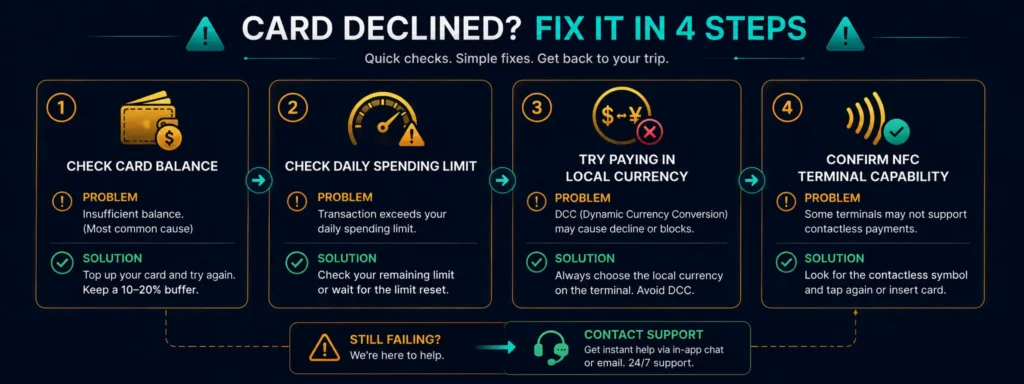
What to Do If a Payment Declines
First check: insufficient balance. The most common cause. Log into your Rivocard dashboard on your phone to check the balance. If low, reload from your wallet (requires internet access and approximately 5 minutes using TRC-20 USDT).
Second check: spending limit reached. Basic KYC limits are $500/transaction and $1,000/day. A hotel hold plus a purchase might push over the daily limit. Check your limit settings.
Third check: DCC issue. Some terminals may have pre-selected DCC. Try the transaction again, explicitly choosing local currency.
Fourth check: NFC issue. If Apple Pay declines, check that the terminal actually has NFC capability (the contactless symbol). Try paying a different way or at a different terminal.
Emergency contact: If none of the above resolve the issue, contact Rivocard support with your transaction details.
Card Stolen or Phone Lost
Immediate actions:
- Log into your Rivocard dashboard from any browser (laptop, tablet, another device)
- Freeze the affected card immediately — this blocks all further charges including via Apple Pay
- Create a new card for continued spending
- If your phone was lost: remotely erase the phone via iCloud (Apple) or Find My Device (Android) to protect Apple Pay access
For the remainder of the trip: The new card number can be added to a replacement phone or used via direct card entry at merchants until you return home.
Reloading Your Card Mid-Trip
If your card balance runs low while traveling:
- Open your Rivocard dashboard in a mobile browser
- Check your wallet balance — if sufficient, fund the card from wallet (5% fee applies)
- If wallet is low, open your exchange app (Binance, OKX, etc.) and send USDT TRC-20 to your Rivocard deposit address (under 5 minutes)
- Once the deposit confirms, fund your card
This requires: internet access (hotel Wi-Fi or roaming data), your exchange app, and approximately 5-10 minutes. Front-loading before departure is simpler, but mid-trip reload is achievable.
Phase 5: After Your Trip
Rivocard cards retain their balance until you delete the card or the card expires. Remaining balance after travel stays on the card for your next trip or everyday use. No inactivity fee.
If you want the balance back in your Rivocard wallet (to convert to crypto or use elsewhere), create a purchase transaction to zero out the card, or contact Rivocard support for balance return options.
FAQs
How do I use a Rivocard while traveling abroad?
Load your card with your travel budget before departure, add it to Apple Pay or Google Pay, and tap at NFC terminals for in-person payments. Use the card number directly for online purchases. Always choose local currency when offered a DCC option. 0% FX applies to all transactions.
What is the most important thing to know when using a crypto card abroad?
Always pay in local currency. Decline Dynamic Currency Conversion (DCC) every time it is offered – at terminals, ATMs, and checkout screens. DCC lets the merchant apply their own exchange rate, often 3-8% worse than the Visa interbank rate, bypassing your card’s 0% FX benefit.
Can I reload my Rivocard while I am traveling?
Yes, but it requires internet access, your exchange account, and approximately 5-10 minutes. Send USDT TRC-20 to your Rivocard deposit address, wait for blockchain confirmation (seconds), and fund your card from the wallet balance. Loading the card generously before departure is simpler than reloading mid-trip.
What do I do if my Rivocard declines abroad?
Check: (1) sufficient card balance via your dashboard, (2) you have not exceeded your daily spending limit, (3) the terminal has NFC capability, (4) you selected local currency not DCC. If the issue persists after these checks, contact Rivocard support with the transaction details.
Can I use my Rivocard on public transit abroad?
Yes – in cities where transit systems accept contactless Visa via Apple Pay or Google Pay. This includes London Underground (TfL), Singapore MRT (SimplyGo), New York MTA (OMNY), Sydney Opal, Tokyo (Suica via Apple Pay), and many others.
What happens if my phone is stolen while using Rivocard via Apple Pay abroad?
Immediately log into your Rivocard dashboard from any other device and freeze the card – this blocks Apple Pay on the stolen phone. Remotely erase your phone via iCloud or Find My Device to protect your Apple Pay setup. Create a new Rivocard card from your dashboard for continued travel spending.
Do I need to notify Rivocard before traveling?
No – there is no travel notification required for Rivocard virtual cards. The 0% FX applies automatically to all international transactions without prior notification. For physical bank cards, travel notification is often required; for Rivocard, it is not.
How do I avoid hotel check-in problems with a virtual crypto card?
Most mid-range properties accept virtual Visa cards for check-in holds with sufficient balance. For luxury or business hotels that specifically request a credit card for holds, maintain a traditional credit card as a backup for this scenario. Book accommodation online with Rivocard – that step always works regardless of property tier.
Is it safe to use Apple Pay with a Rivocard in a foreign country?
Yes. Apple Pay uses device tokenization – your actual Rivocard card number is never transmitted to the merchant. Biometric authentication (Face ID or Touch ID) prevents use if your phone is lost. The security model is the same globally as domestically.
How much should I load onto my Rivocard before an international trip?
Calculate your estimated total spend plus a 20-30% buffer for unexpected expenses and hotel holds. Fund this entire amount before departure to avoid needing to reload mid-trip. The 5% card funding fee applies once to this total amount.
Get Started
Fund your travel card with USDT and spend at 0% FX in 200+ countries. Create your Rivocard account