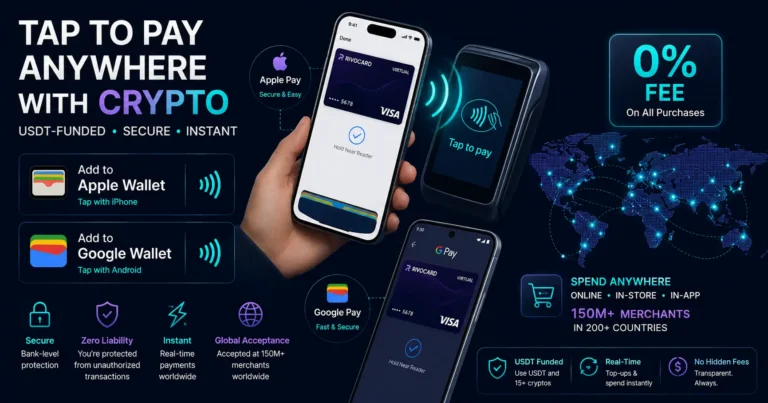
Quick answer: Rivocard virtual Visa cards support both Apple Pay and Google Pay. After creating and funding your virtual card, open your device’s Wallet app (Apple) or Google Wallet (Android), add a payment card, enter your Rivocard card number, expiry date, and CVV, and follow the verification step. The card is ready for contactless tap-to-pay within minutes. A virtual card can be added to Apple Pay or Google Pay when the card issuer supports mobile wallet provisioning. The standard process is to open Apple Wallet or Google Wallet, select the option to add a payment card, enter the virtual card details, and complete the required verification step. Once added, your Rivocard is accepted at any NFC contactless terminal globally at 0% purchase fee.
Why Apple Pay and Google Pay Matter for Crypto Cards
Mobile wallet compatibility is one of the top three features users look for when choosing a crypto card in 2026. Crypto cards that support Apple Pay and Google Pay make it easy to use digital assets for everyday payments, both online and in stores, with the same speed and convenience as regular bank cards.
For virtual crypto cards specifically, Apple Pay and Google Pay solve the physical card limitation. A virtual card has no plastic form — without a digital wallet, it can only be used for online purchases where you type the card number. With Apple Pay or Google Pay:
- The virtual card works at any in-person NFC contactless terminal
- No physical card needs to be manufactured or mailed
- In-person payments are more secure than physical cards (tokenized — your actual card number is never transmitted to the merchant)
- You can start in-person spending minutes after creating your card
- Transit systems (London Underground, New York MTA, Singapore MRT, etc.) are accessible immediately
The fastest virtual crypto cards go from signup to first in-person purchase in under 5 minutes via Apple Pay or Google Pay.
How Tokenization Makes Mobile Wallet Payments Secure
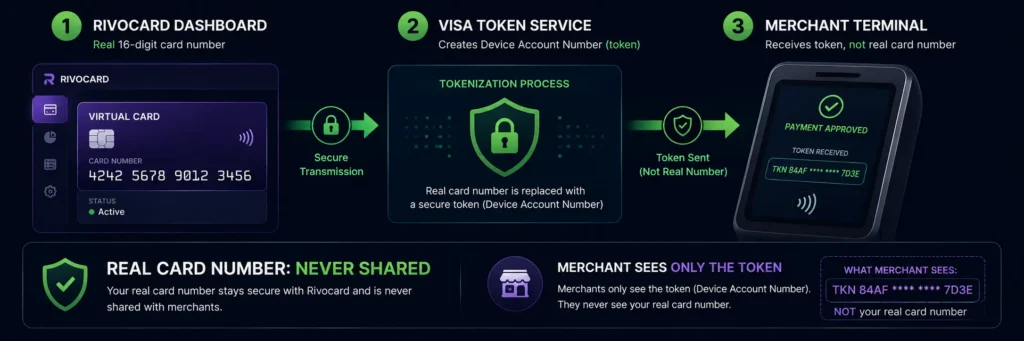
When you add your Rivocard virtual card to Apple Pay or Google Pay, neither wallet stores your actual 16-digit card number. Instead, Visa’s Token Service (for Apple Pay) or Google’s equivalent tokenization creates a Device Account Number — a unique token that represents your card for that specific device.
When you add your virtual card to Apple or Google Pay, your actual 16-digit card number is never stored on your device or shared with merchants. Instead, an encrypted token is created. This makes mobile payments more secure than physical card payments.
What happens at a contactless terminal:
- You tap your phone (or watch) at the NFC terminal
- The device transmits the Device Account Number (token), not your real card number
- The card network matches the token to your actual card and processes the transaction
- The merchant’s payment system receives confirmation — but never your real card number
The security implication: A merchant data breach cannot expose your Rivocard card number via a contactless transaction, because the real card number was never transmitted. Even if the merchant’s payment system is completely compromised, the stolen token cannot be used at other merchants — it is device-specific and transaction-specific.
This is a genuine security advantage over physical card tap-to-pay, where the card number can be read from the chip in certain attack scenarios.
Step-by-Step: Adding Rivocard to Apple Pay
Requirements:
- An iPhone (iPhone 6 or later) or Apple Watch
- iOS updated to current version
- Rivocard virtual card created and funded (active status in your dashboard)
Steps:
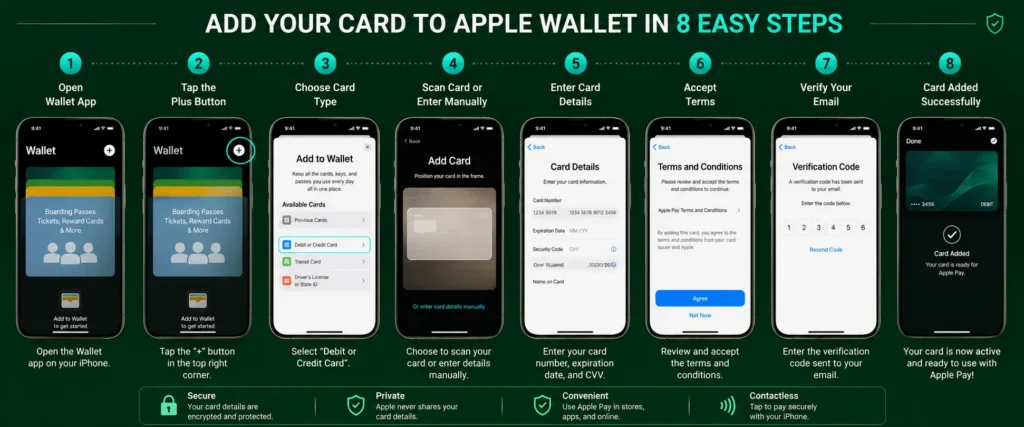
Step 1: Open the Wallet app on your iPhone. (It is the pre-installed app with a wallet icon — not App Store.)
Step 2: Tap the “+” button in the top-right corner.
Step 3: Select “Debit or Credit Card.”
Step 4: Either position your card number in the camera frame (camera scan) or tap “Enter Card Details Manually.”
Step 5: Enter your Rivocard card number (16 digits), expiry date (MM/YY), and CVV (3 digits). These are visible in your Rivocard dashboard.
Step 6: Review the Rivocard terms. Tap “Agree.”
Step 7: Verify the card. You may be prompted to verify via email (Rivocard will send a verification code), through the Rivocard app, or via a phone call. Select the available verification method and complete it.
Step 8: Once verified, the card appears in your Wallet app as a Visa card. It is now ready for Apple Pay.
To pay with Apple Pay:
- In stores: double-click the side button (Face ID devices) or home button (Touch ID devices), authenticate, and tap your phone to the contactless reader
- Online (Safari): tap the Apple Pay button at checkout
- In apps: tap the Apple Pay button within the app
Step-by-Step: Adding Rivocard to Google Wallet
Requirements:
- An Android device running Android 5.0 or later with NFC
- Google Wallet app installed (download from Google Play if not installed)
- Rivocard virtual card created and funded
Steps:
Step 1: Open Google Wallet on your Android device.
Step 2: Tap the “+” button or “Add to Wallet” option.
Step 3: Select “Payment card.”
Step 4: Tap “New credit or debit card.”
Step 5: Either scan your card details with the camera or enter manually: card number (16 digits), expiry date (MM/YY), and CVV.
Step 6: Enter your name as it appears on the Rivocard account.
Step 7: Review and accept terms.
Step 8: Verify the card. Select your verification method (email code, etc.) and complete.
Step 9: Once verified, the card is active in Google Wallet and ready for contactless payments.
To pay with Google Wallet:
- Unlock your Android device
- Hold the back of the phone near the contactless reader (no app opening required on most Android devices)
- If required, authenticate with fingerprint or PIN
Where You Can Use Rivocard via Apple Pay or Google Pay
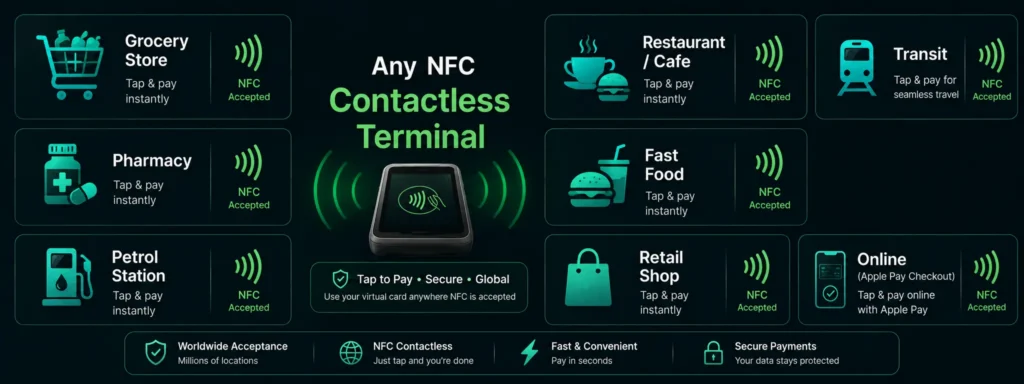
In-person retail: Any store with an NFC contactless payment terminal displaying the contactless symbol. In 2026, the vast majority of modern retailers globally have contactless readers. Grocery stores, pharmacies, restaurants, coffee shops, petrol stations, clothing retailers, electronics stores.
Transit systems:
- London Underground (TfL) and buses
- New York MTA (on supported lines)
- Singapore MRT
- Sydney Opal network
- Toronto TTC
- Melbourne Myki
- Many other transit systems that accept contactless card payment
Rivocard via Apple Pay or Google Pay works as a standard Visa contactless at any transit system that accepts Visa tap-to-pay. No separate setup needed beyond adding the card to your wallet.
Fast food and cafes: McDonald’s, Starbucks, Costa, KFC, Subway, Pret a Manger, and virtually all modern fast food and cafe chains support contactless NFC terminals.
Online with Apple Pay or Google Pay checkout: Many websites and apps offer “Pay with Apple Pay” or “Pay with Google Pay” as a checkout option. When you select this, your Rivocard card (as the default or selected card in your wallet) is used, with 0% purchase fee and 0% FX fee.
In-app purchases: Mobile apps that support Apple Pay or Google Pay as payment methods allow you to pay with Rivocard directly from the app. Delivery apps, ticketing apps, and service apps commonly support this.
Rivocard and Apple Pay: The In-Person Coverage Gap for Virtual Cards
Virtual Visa cards on Rivocard cover the following in-person scenarios via Apple Pay or Google Pay:
- All NFC contactless terminals (the large majority of modern terminals in 2026)
- Transit systems with tap payment
- Any merchant accepting contactless
They do not cover:
- ATMs (require physical card chip or magnetic stripe)
- Chip-and-PIN-only terminals without NFC (rare in 2026 but still exist in some areas)
- Situations requiring physical card presentation
For most users in 2026, Apple Pay and Google Pay via Rivocard cover 90-95% of in-person spending scenarios. The remaining cases (ATMs, older terminals) require a physical bank card as a backup.
Multiple Cards in Apple Pay and Google Pay
Apple Pay and Google Pay both allow multiple cards to be added simultaneously. You can set a default card and switch between cards per transaction.
Practical multi-card setup with Rivocard:
- Add your primary everyday card as the default in Apple Pay or Google Pay
- Add a dedicated travel card as a second option for use abroad
- Switch to the appropriate card depending on purpose
Both wallets allow you to select which card to use for each transaction rather than always using the default. This enables per-use case card selection without creating friction.
Biometric Security for In-Person Payments
Apple Pay requires Face ID, Touch ID, or device passcode authentication for every in-person payment. Google Pay requires device authentication (fingerprint, PIN, or pattern) for in-person payments.
This means: if your phone is stolen, your Rivocard (and any other cards) in Apple Pay or Google Pay cannot be used without biometric authentication or your device PIN. Physical cards lack this requirement — a stolen physical card can be used at contactless terminals without any PIN for purchases below threshold limits.
The biometric authentication layer is another security advantage of using virtual cards via digital wallets vs physical cards for in-person payments.
FAQs
Can I add a Rivocard virtual Visa card to Apple Pay?
Yes. Open the Wallet app on your iPhone, tap the + button, select ‘Debit or Credit Card’, and enter your Rivocard card number, expiry date, and CVV from your dashboard. Complete the verification step (typically email code) and the card is active for Apple Pay.
Can I add a Rivocard to Google Pay?
Yes. Open Google Wallet, tap the + button, select ‘Payment card’ then ‘New credit or debit card’, enter your Rivocard details, and complete verification. The card is then active for Google Pay contactless payments.
Does using Rivocard via Apple Pay charge any extra fees?
No. Apple Pay and Google Pay use your Rivocard virtual card directly. The 0% purchase fee and 0% international transaction fee apply identically to Apple Pay and Google Pay transactions as they do to direct card entry purchases.
Is paying with Apple Pay and my Rivocard card more secure than using the card number?
Yes. Apple Pay uses tokenization – your actual 16-digit card number is never transmitted to the merchant or stored on your device. A device-specific token is used instead. Even a complete breach of the merchant’s payment system cannot expose your real Rivocard card number from a contactless transaction.
Can I use Rivocard via Apple Pay on London Underground?
Yes. TfL (Transport for London) accepts Apple Pay at Underground, Overground, DLR, Elizabeth line, and bus fare gates. Add your Rivocard to Apple Pay and tap in and out as normal. 0% FX fee applies – GBP fares are converted to USD at the Visa interbank rate.
Do I need a physical Rivocard card to use Apple Pay?
No. Rivocard is virtual-only. The card number, expiry, and CVV from your dashboard are all that is needed to add to Apple Pay or Google Pay. No physical plastic is required.
Does Rivocard work with Samsung Pay?
Samsung Pay is supported on Samsung devices. The process is similar to Google Pay – open Samsung Pay, add a card, enter your Rivocard details, and complete verification. Samsung Pay also uses NFC for contactless payments at compatible terminals.
What happens to my Apple Pay card if I freeze my Rivocard?
A frozen Rivocard is blocked at the network level. Apple Pay and Google Pay tap payments using the frozen card will be declined. This is useful for temporary blocking – freeze the card if you suspect unauthorized use, and your Apple Pay setup is also blocked immediately. Unfreeze and both direct and Apple Pay payments resume.
How many Rivocard cards can I add to Apple Pay?
You can add multiple Rivocard cards to Apple Pay (Apple supports up to 12-16 cards per device depending on the device model). Add separate Rivocard cards for different purposes and switch between them per transaction in the Wallet app.
Is there a minimum balance requirement to use Rivocard via Apple Pay?
No minimum balance requirement for the wallet setup. For an Apple Pay transaction to succeed, the card must have sufficient balance to cover the purchase amount. A card with $0 balance will decline even via Apple Pay.
Get Started
Add your Rivocard virtual Visa card to Apple Pay or Google Pay and tap to pay worldwide. Create your Rivocard account – card ready in under 2 minutes