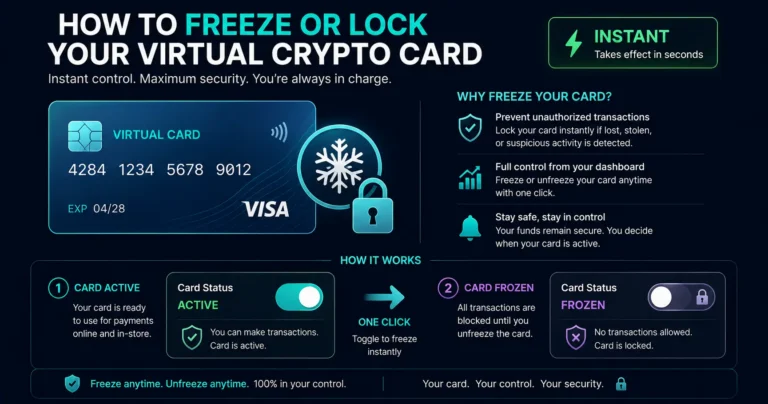
Quick answer: To freeze a virtual crypto card on Rivocard, log into your dashboard, navigate to the card you want to freeze, and toggle the freeze or lock option. The card is frozen instantly — all new purchase attempts are declined from that moment. Freezing is reversible: your card number, balance, and linked subscriptions are preserved, and you can unfreeze at any time. For virtual cards specifically, there is also a delete option — which permanently removes the card and its number. Freezing is the right response to suspected unauthorized use, a suspicious merchant charge, or temporary security concerns. Deleting is the right response to a confirmed compromise where you never want that card number used again.
Freeze vs Delete: Understanding the Difference
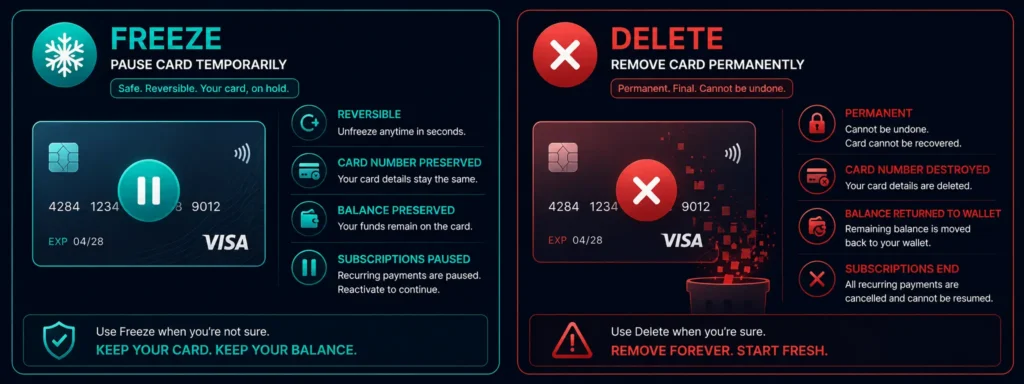
Before the steps, the most important distinction on Rivocard virtual cards:
| Freeze | Delete | |
|---|---|---|
| Effect | Blocks all new purchase attempts | Permanently removes the card |
| Card number | Preserved — same number when unfrozen | Destroyed — cannot be recovered |
| Card balance | Preserved | Returned to wallet balance |
| Reversibility | Yes — unfreeze anytime | No — permanent |
| Subscriptions | Paused — resume when unfrozen | Cancelled — merchant will no longer charge |
| Apple Pay / Google Pay | Temporarily blocked | Removed — must re-add a new card |
| Best for | Temporary security concern, suspicious activity, lost device | Confirmed compromise, card no longer needed |
Freeze blocks new purchases but not pending ones. The card number survives a freeze — toggle it back on and wallets, saved cards, and subscriptions all resume without a new number being issued.
The key implication: if you have subscriptions or services saved to a frozen card, they resume automatically when you unfreeze — no need to update payment details anywhere.
How to Freeze a Card on Rivocard
Step 1: Log into your Rivocard dashboard at rivocard.com.
Step 2: Navigate to the cards section. You will see all your virtual cards listed with their current status and balance.
Step 3: Click on the specific card you want to freeze.
Step 4: Look for the freeze, lock, or pause control — typically a toggle or button on the card’s detail page. Labels vary by interface version: “Freeze Card,” “Lock Card,” “Pause Card,” or “Suspend.”
Step 5: Confirm the action. The card status updates immediately — new purchase attempts begin being declined from this moment.
Step 6: Note any pending charges. Check the transaction history for any authorized-but-not-yet-settled transactions (covered below).
Total time: Under 30 seconds.
The card is now frozen. You do not need to contact support, call a number, or wait for confirmation — the freeze is instant and takes effect on the next authorization attempt.
What Happens to Pending and Pre-Authorized Transactions After Freezing
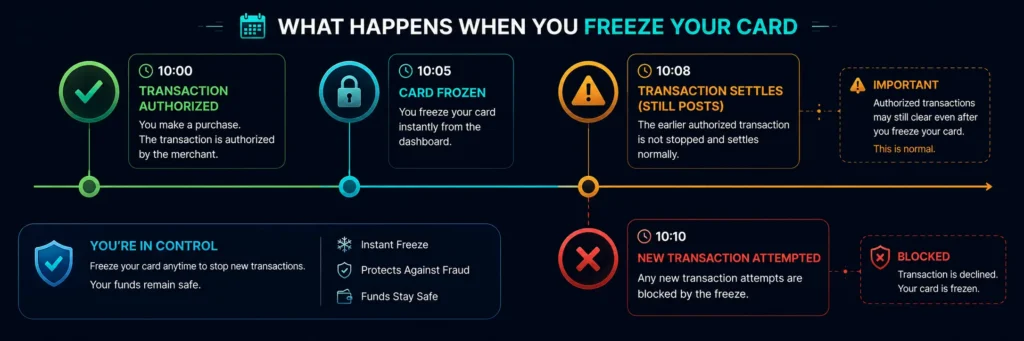
This is the most important technical detail about card freezing, and the one most users miss:
Any charge already authorized before you hit pause will still settle to your account. Freeze blocks new authorizations — it does not reverse or block transactions that were already approved.
How payment authorization works: When you make a purchase, the merchant sends an authorization request to the card network, which checks your card status and balance. An approved authorization creates a hold on your balance. The actual settlement (when the money actually moves) happens later — often 1-3 business days for online merchants.
What this means for freezing:
- If a merchant authorized your card at 10:00 and you froze the card at 10:05, that merchant’s transaction will still settle and appear as a charge
- The freeze only affects new authorization requests — attempts that happen after the freeze was applied
- Pre-authorized hotel holds, fuel pump holds, and subscription renewals that already triggered before your freeze will still post to your account
Practical implication: If you see an unauthorized transaction and freeze the card, check whether the unauthorized party may have already made additional pre-authorizations before you froze it. Review the full pending transaction list carefully.
What Happens to Subscriptions During a Card Freeze
Subscriptions linked to a frozen card will fail to renew until you unfreeze. When a subscription attempts to charge your card while it is frozen:
- The authorization attempt is declined
- The subscription service may retry the payment (typically once or twice)
- If the card remains frozen through all retry attempts, the subscription will eventually mark the payment as failed
- The subscription service may suspend or cancel the subscription, send a failed payment email, or try an alternate payment method if one is on file
If you want subscriptions to continue without interruption: Unfreeze the card as soon as your security concern is resolved, or update the subscription to a different Rivocard card before the renewal date.
If you want subscriptions to stop: Deleting the card (rather than freezing) causes all future authorizations to fail permanently — the merchant’s system will eventually cancel the subscription after failed retry attempts. Note that cancelling subscriptions properly through the merchant’s own cancellation process is preferable to relying on card deletion, as the subscription service may still claim debt for services rendered.
What Happens to Apple Pay and Google Pay After Freezing
If you have added your Rivocard virtual card to Apple Pay or Google Pay:
When frozen: The card is blocked at the network level — Apple Pay and Google Pay contactless payments using that card number will be declined, the same as direct card entry.
When unfrozen: Apple Pay and Google Pay resume working immediately. No re-adding of the card to your digital wallet is required — the token mapping is preserved during a freeze.
When deleted: The card token associated with that number is invalidated. You will need to add a new card to your Apple Pay or Google Pay wallet after creating a replacement card.
How to Unfreeze a Card
Unfreezing is the exact reverse of the freeze process:
- Log into your Rivocard dashboard
- Navigate to cards → select the frozen card
- Toggle the freeze control to the “active” or “unfrozen” state
- Confirm the action
The card is active immediately. The next authorization attempt will be approved (assuming sufficient balance and within your spending limits).
How to Delete a Card
Delete is the permanent option — use it when:
- A card number has been confirmed as compromised and you never want it used again
- You are done using a card and want to return its balance to your wallet
- You want to stop all merchant charges on a specific card number permanently
Steps to delete a Rivocard virtual card:
- Log into your Rivocard dashboard
- Navigate to cards → select the card to delete
- Look for the delete or cancel option (often in a secondary menu or “more options”)
- Confirm the deletion — this is permanent and irreversible
What happens to the balance: The remaining balance on a deleted card is returned to your Rivocard wallet balance. You do not lose the funds — they are available to fund a new card.
What happens to the card number: Permanently invalidated. The card number cannot be recovered, restored, or reused.
When to Freeze vs When to Delete: Decision Guide
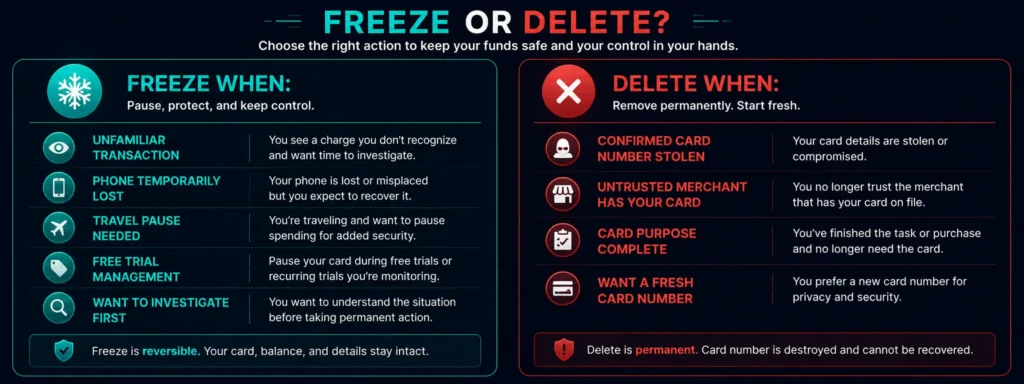
Freeze when:
- You see a transaction that looks unfamiliar but may be legitimate (a merchant name you do not recognize, a charge you forgot about)
- Your phone was temporarily lost or in an unsafe situation
- You are traveling to a high-risk area and want to temporarily disable the card
- You want to pause a subscription without cancelling it
- You want to investigate before deciding on a permanent action
Delete when:
- You have confirmed the card number was stolen or used fraudulently
- A merchant you do not trust has your card number and you want to cut off all future charges
- The card served its purpose (a specific trip, project, or campaign) and is no longer needed
- You want to close and replace the card with a fresh number for security hygiene
When in doubt, freeze first. Freezing is reversible and gives you time to investigate. Deleting cannot be undone — create a replacement card after you are certain the old number should never work again.
Creating a Replacement Card After a Security Event
After freezing and investigating — or after deleting a compromised card — creating a replacement is immediate and free:
- From your Rivocard dashboard → cards → create new card
- Fund the new card from your wallet balance (the 5% card funding fee applies)
- The new card has a completely new card number, expiry date, and CVV
- Update any merchants, subscriptions, or digital wallets that need the new number
On Rivocard, card creation is always free and instant. There is no waiting period, no request form, no support ticket needed — you have a new card number within seconds.
The Security Advantage of Virtual Cards for Freeze and Replace
The freeze-and-replace capability is one of the strongest security advantages of virtual cards over physical cards:
| Virtual card (Rivocard) | Physical card | |
|---|---|---|
| Time to freeze | Seconds | Usually instant via app |
| Replacement issued | Instantly — new number in seconds | 5-10 business days by mail |
| Downtime during replacement | Zero — continue spending on other cards | Cannot use that card until new one arrives |
| Cost of replacement | Free | Sometimes charged |
| Old number disabled | Instantly on deletion | Yes, when reported |
If a merchant is breached or you suspect compromise, you freeze or delete the card instantly and issue a new one — without losing access to your funds.
The absence of physical manufacturing and mail delivery makes virtual card compromise response orders of magnitude faster than the physical card equivalent.
Using Freeze Proactively (Not Just Reactively)
Freezing is not only a reactive security tool — it can be used proactively as part of regular card hygiene:
After completing a specific purpose: If you created a card specifically for a one-time campaign, subscription sign-up, or trip, freeze it immediately after the purpose is complete. This prevents unexpected charges from that card while keeping the balance accessible if needed.
Before a period of non-use: If you are going on holiday and will not use a specific card, freezing it eliminates the risk of unauthorized use during the period you are not monitoring it.
For free trial management: You can freeze or delete a virtual card instantly from the dashboard — useful for free trials that auto-renew or merchants you do not fully trust. Sign up for a free trial using a specific card, then freeze the card before the trial ends. If you want to continue, unfreeze and update. If not, keep it frozen — the trial cannot charge you while frozen.
One-card-per-merchant discipline: Create a card for a specific merchant, freeze it when not actively needed, and unfreeze when making a new purchase. This contains any compromise to that specific card without affecting your other spending.
FAQs
How do I freeze a virtual crypto card on Rivocard?
Log into your Rivocard dashboard, navigate to the cards section, select the card you want to freeze, and toggle the freeze or lock control. The freeze takes effect instantly — new purchase attempts are declined from that moment. Total time: under 30 seconds.
Does freezing a crypto card cancel pending transactions?
No. Freezing blocks new authorization requests but does not reverse transactions that were already authorized before the freeze. Any charge authorized before you froze the card will still settle. Check your pending transactions after freezing to identify any pre-authorized charges.
What is the difference between freezing and deleting a virtual crypto card?
Freezing is temporary and reversible — the card number is preserved and the card can be unfrozen instantly. Deleting is permanent — the card number is destroyed, remaining balance is returned to your wallet, and the number cannot be recovered. Freeze for temporary concerns; delete when confirmed compromised.
What happens to my subscriptions if I freeze my card?
Subscription renewal attempts on a frozen card will be declined. If the card remains frozen through all retry attempts, the subscription may mark the payment as failed and suspend the subscription. Unfreeze the card before the renewal date to avoid interruption, or update the subscription to a different card.
What happens to Apple Pay and Google Pay when I freeze a Rivocard virtual card?
Contactless payments via Apple Pay and Google Pay using the frozen card number are blocked — declined at the network level. When you unfreeze the card, Apple Pay and Google Pay resume immediately without needing to re-add the card. If you delete the card, you must add a new card to your digital wallet.
How do I unfreeze a Rivocard virtual card?
Log into your dashboard, navigate to the frozen card, and toggle the freeze control back to active. The unfreeze takes effect immediately — the next purchase attempt is processed normally.
How long can I keep a card frozen?
There is no time limit on a card freeze on Rivocard. Your card can remain frozen indefinitely at no additional cost. Rivocard does not charge inactivity or freeze fees.
What happens to my card balance when I delete a card?
The remaining balance on a deleted card is returned to your Rivocard wallet balance. You do not lose the funds — they are available to fund a new card immediately.
How quickly can I get a replacement card after deleting a compromised one?
Immediately. Creating a new Rivocard virtual card takes seconds — no request form, no waiting period, no support ticket. Card creation is always free. Fund the new card from your wallet balance and the 5% fee applies at that funding step.
Can I freeze a card to prevent free trial auto-renewals?
Yes. Creating a dedicated card for a free trial and freezing it before the trial ends prevents the merchant from charging you when the trial converts to a paid subscription. The frozen card blocks all future authorization attempts from that merchant.
Get Started
Freeze, unfreeze, or replace your cards instantly — all from your Rivocard dashboard. See how Rivocard’s card controls work →